
For 2026, these ultrawide monitors boost productivity with 3440×1440 or higher, fast refresh, and flexible ergonomics. Consider the Acer Nitro 34″ curved QHD, LG 34U530A-W with HDR400 and USB-C, LG 34G630A-B for gaming-style speed, Samsung 49” Odyssey G9 with dual QHD and 240Hz, Samsung ViewFinity 34″ with HDR10, 34″ Odyssey G5 at 165Hz, LG 34WR55QK-B with USB-C, Samsung ViewFinity S50GC, and Sceptre 34” ultrawide at 165Hz. Each supports FreeSync, adjustable stands, and multiple inputs. Learn more as you narrow options.
| Acer Nitro 34″ Curved QHD Gaming Monitor (3440×1440) |  | Best All-Around Ultrawide | Screen Size: 34 inches | Resolution: 3440 x 1440 | Refresh Rate: Up to 120 Hz | VIEW LATEST PRICE | See Our Detailed Review |
| LG 34U530A-W UltraWide IPS Monitor with HDR400 100Hz | 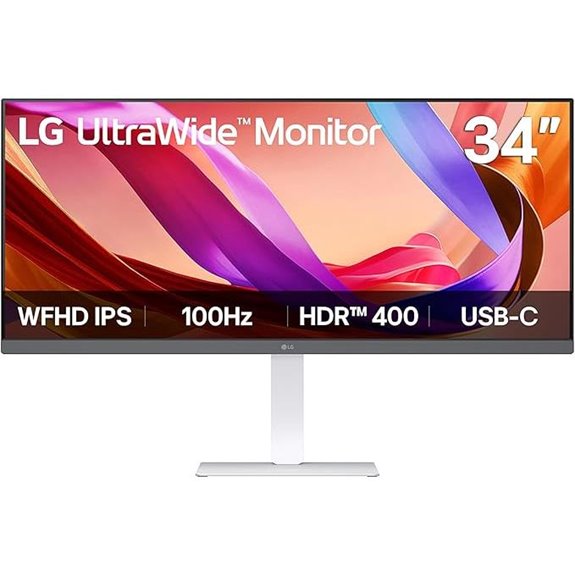 | HDR/Multitasker Favorite | Screen Size: 34 inches | Resolution: 2560 x 1080 | Refresh Rate: 100 Hz | VIEW LATEST PRICE | See Our Detailed Review |
| LG 34G630A-B Ultragear 34″ Curved Gaming Monitor | 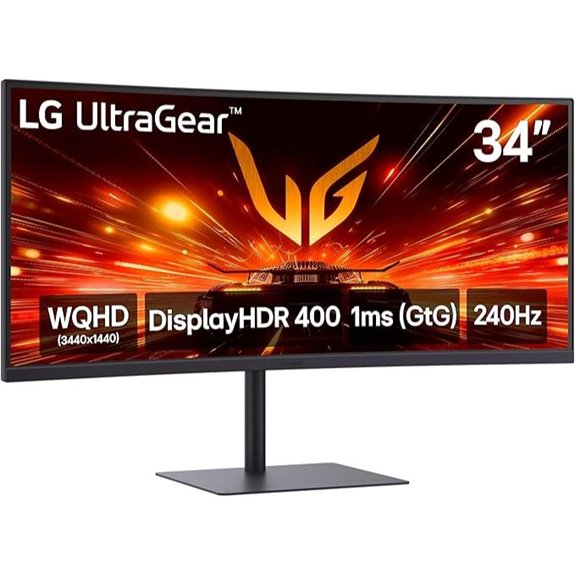 | High-Refresh King | Screen Size: 34 inches | Resolution: 3440 x 1440 | Refresh Rate: 240 Hz | VIEW LATEST PRICE | See Our Detailed Review |
| Samsung 49” Odyssey G9 Gaming Monitor (2024) |  | Immersive Ultra-Width | Screen Size: 49 inches | Resolution: 5120 x 1440 | Refresh Rate: 240 Hz | VIEW LATEST PRICE | See Our Detailed Review |
| Samsung ViewFinity 34″ Ultra-WQHD Monitor 100Hz HDR10 |  | Productivity Powerhouse | Screen Size: 34 inches | Resolution: 3440 x 1440 | Refresh Rate: 100 Hz | VIEW LATEST PRICE | See Our Detailed Review |
| Sceptre 34-In Ultrawide WQHD Monitor (3440×1440) | 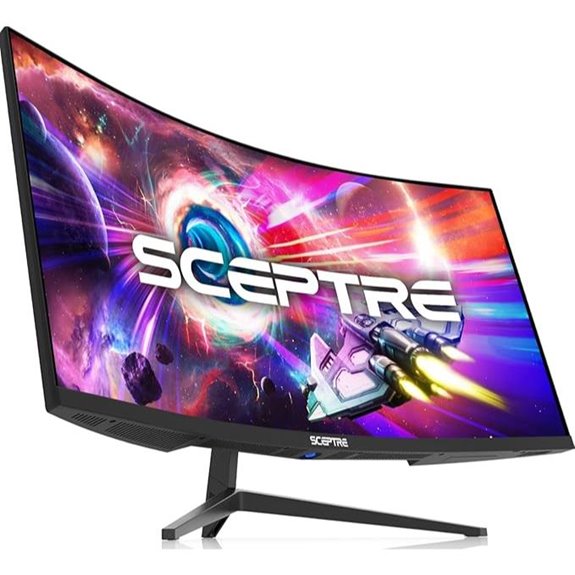 | Value Ultrawide | Screen Size: 34 inches | Resolution: 3440 x 1440 | Refresh Rate: Up to 165 Hz (180 Hz compatible) | VIEW LATEST PRICE | See Our Detailed Review |
| LG 34G600A-B Ultragear 34″ Curved Gaming Monitor | 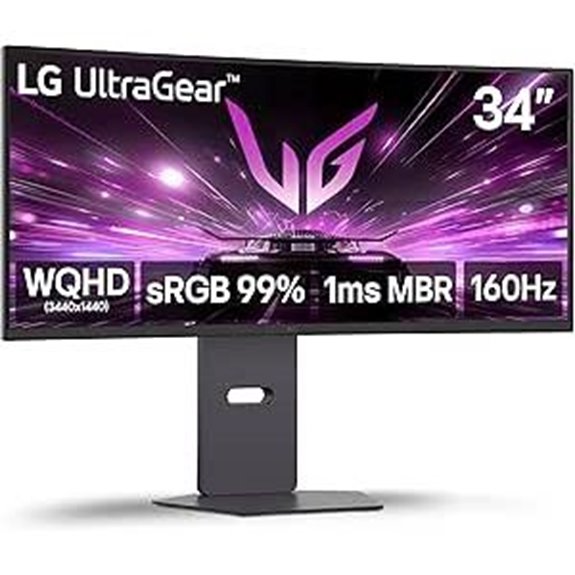 | FPS Optimizer | Screen Size: 34 inches | Resolution: 3440 x 1440 | Refresh Rate: 160 Hz | VIEW LATEST PRICE | See Our Detailed Review |
| Samsung 34″ Odyssey G5 Ultra-Wide Gaming Monitor | 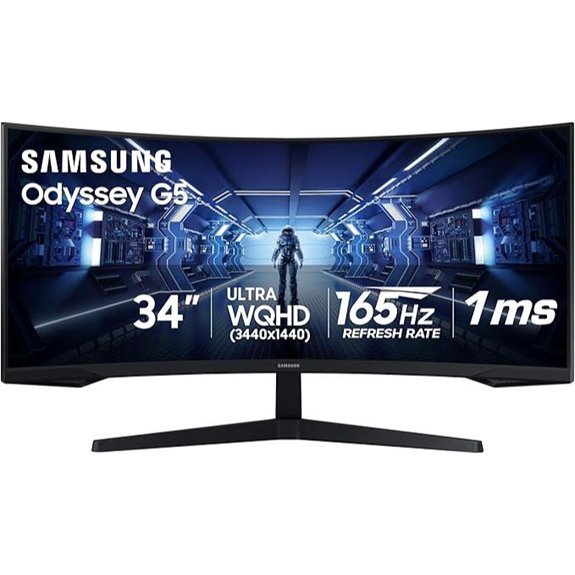 | Curve Classic | Screen Size: 34 inches | Resolution: 3440 x 1440 | Refresh Rate: 165 Hz | VIEW LATEST PRICE | See Our Detailed Review |
| LG 34WR55QK-B UltraWide Curved Monitor 34″ HDR10 USB-C | 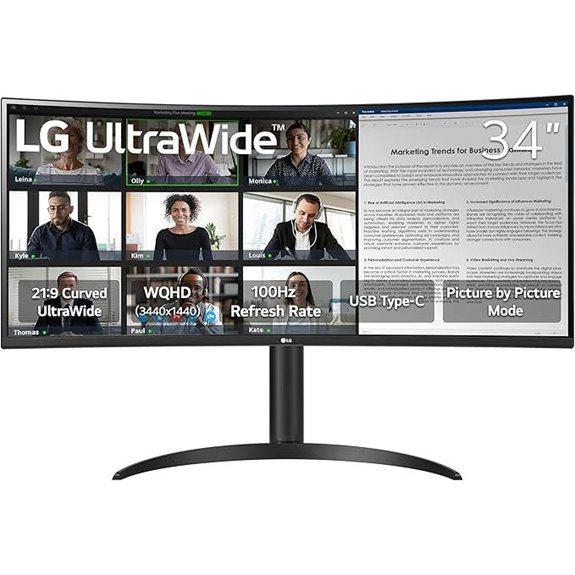 | USB-C Versatile | Screen Size: 34 inches | Resolution: 3440 x 1440 | Refresh Rate: 100 Hz | VIEW LATEST PRICE | See Our Detailed Review |
| Samsung 34″ ViewFinity S50GC Ultrawide Monitor with HDR10 | 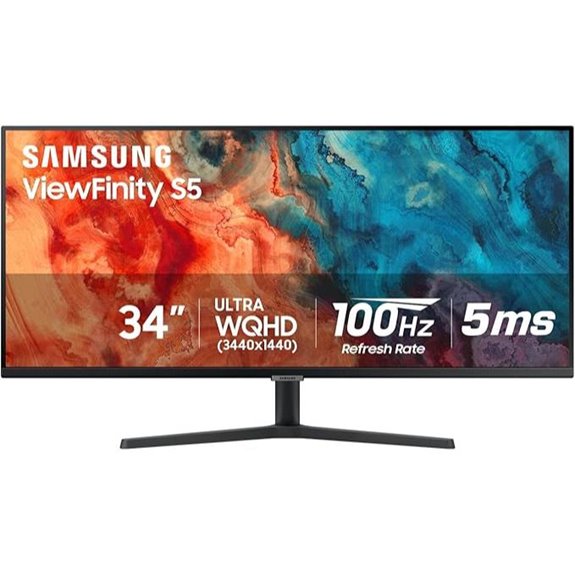 | Dual-Mode Expert | Screen Size: 34 inches | Resolution: Ultra-WQHD (3440 x 1440 implied) | Refresh Rate: 100 Hz | VIEW LATEST PRICE | See Our Detailed Review |
More Details on Our Top Picks
Acer Nitro 34″ Curved QHD Gaming Monitor (3440×1440)
The Acer Nitro 34″ Curved QHD Gaming Monitor (3440×1440) is a solid pick for anyone seeking a broad, immersive display in 2026, especially if you want a smooth, responsive gaming experience without breaking the bank. We note its 34-inch, 1000R curved panel and 3440×1440 resolution, plus a near-borderless design and sRGB 99% color. It runs up to 120Hz with 1ms VRB response, and uses AMD FreeSync Premium to reduce tearing. You’ll find two DisplayPort 1.2 inputs, two HDMI 2.0 ports, and built-in 3W speakers. It’s VESA compatible and tilt-adjustable for comfort.
- Screen Size:34 inches
- Resolution:3440 x 1440
- Refresh Rate:Up to 120 Hz
- Adaptive Sync / Freesync:AMD FreeSync Premium
- HDR Capability:sRGB 99% (color accuracy; HDR not specified)
- Connectivity Options:2 x DisplayPort 1.2, 2 x HDMI 2.0, USB connectivity not specified
- Additional Feature:Built-in speakers
- Additional Feature:100 x 100mm VESA
- Additional Feature:2x HDMI 2.0
LG 34U530A-W UltraWide IPS Monitor with HDR400 100Hz
If you need a wide, capable setup for multitasking, the LG 34U530A-W stands out with its 34-inch, 21:9 IPS display and HDR400 brightness, offering a broad canvas for split windows and immersive detail. It covers up to 99% sRGB, delivers a smooth 100Hz refresh, and includes a 34-inch ultrawide panel for multiple apps side by side. You get USB-C, DisplayPort, and HDMI, plus built‑in Waves MaxxAudio speakers. The switch app splits into up to six sections, while the slim stand and adjustable height, tilt, and swivel help fit your desk. A solid, affordable productivity choice.
- Screen Size:34 inches
- Resolution:2560 x 1080
- Refresh Rate:100 Hz
- Adaptive Sync / Freesync:AMD FreeSync
- HDR Capability:HDR400
- Connectivity Options:USB-C, DisplayPort, HDMI
- Additional Feature:HDR400 support
- Additional Feature:USB-C connectivity
- Additional Feature:Screen-splitting switch app
LG 34G630A-B Ultragear 34″ Curved Gaming Monitor
For gamers who want top-tier smooth action and a wide field of view, the LG 34G630A-B Ultragear 34″ curved monitor stands out with its 3440 x 1440 resolution and a blistering 240Hz refresh rate. We note its 1ms response time (GtG) and 21:9 Widescreen format, plus HDR DisplayHDR 400 and up to 95% DCI-P3 color. FreeSync Premium reduces tearing, Dynamic Action Sync lowers input lag, and Black Stabilizer helps dark scenes. It offers HDMI x2, DisplayPort, USB-C (PD 15W), and USB-A ports, with a height/tilt/swivel adjustable stand for comfortable setups. Practical, price varies by retailer.
- Screen Size:34 inches
- Resolution:3440 x 1440
- Refresh Rate:240 Hz
- Adaptive Sync / Freesync:FreeSync Premium
- HDR Capability:DisplayHDR 400
- Connectivity Options:HDMI x2, DisplayPort, USB-C (PD 15W)
- Additional Feature:240Hz refresh
- Additional Feature:USB-C (PD 15W)
- Additional Feature:Crosshair feature
Samsung 49” Odyssey G9 Gaming Monitor (2024)
The Samsung 49” Odyssey G9 (2024) stands out for gamers who want a truly expansive, immersive setup without sacrificing performance, thanks to its 5120×1440 dual-QHD resolution and a 240Hz refresh rate. We explore how its 1000R curved screen enhances peripheral awareness, and how CoreSync and Core Lighting+ add depth to visuals without distraction. The monitor offers a 1ms GTG response, 1000 nit peak brightness, and VESA DisplayHDR 1000, with a robust 16.6 x 45.2 x 22.4 inch footprint. It’s height adjustable, supports VESA arms, and includes PBP, PIP, and Auto Source Switch+. Overall, a strong productivity and gaming mix.
- Screen Size:49 inches
- Resolution:5120 x 1440
- Refresh Rate:240 Hz
- Adaptive Sync / Freesync:AMD FreeSync Premium Pro
- HDR Capability:VESA DisplayHDR 1000 certified
- Connectivity Options:HDMI, DisplayPort, USB Type-C (if applicable via hub). (Note: The description lists general connectivity; exact ports not exhaustively specified.)
- Additional Feature:CoreSync color projection
- Additional Feature:Core Lighting+ ambient
- Additional Feature:Picture-by-Picture
Samsung ViewFinity 34″ Ultra-WQHD Monitor 100Hz HDR10
The Samsung ViewFinity 34″ Ultra-WQHD Monitor appeals to multitaskers who want plenty of screen real estate without sacrificing clarity, thanks to its 34-inch, 3440×1440 display and 21:9 aspect ratio. We see a 100Hz refresh rate, 5ms response, and HDR10 with over a billion colors, plus AMD FreeSync to reduce tearing. It has 2 HDMI 2.2 ports and 1 DisplayPort 1.2, plus PBP and PIP for multitasking. The borderless design aids focus, and eye-care features help long work sessions. We note a 300 cd/m² brightness and 3000:1 contrast, with a 10.8-pound body and 34-inch footprint.
- Screen Size:34 inches
- Resolution:3440 x 1440
- Refresh Rate:100 Hz
- Adaptive Sync / Freesync:AMD FreeSync
- HDR Capability:HDR10
- Connectivity Options:2 x HDMI 2.2, 1 x DisplayPort 1.2, USB-C
- Additional Feature:HDR10 color depth
- Additional Feature:PBP and PIP
- Additional Feature:100Hz refresh
Sceptre 34-In Ultrawide WQHD Monitor (3440×1440)
This Sceptre 34-Inch Ultrawide WQHD monitor stands out for anyone who wants a broad, immersive workspace without sacrificing detail, thanks to its 3440×1440 resolution and 21:9 aspect ratio. We note a 34-inch screen, curved 1500R design, and a weight of 15.32 pounds, plus 8.6 x 31.8 x 17.96 inches in size. It offers up to 165Hz refresh (180Hz compatibility), 1ms MPRT, 99% sRGB color, and both HDMI and DisplayPort connections. It includes AMD FreeSync, Picture by Picture, built-in speakers, and backlit LED effects. Availability began January 31, 2023, with a standard return policy and a 15% restocking fee.
- Screen Size:34 inches
- Resolution:3440 x 1440
- Refresh Rate:Up to 165 Hz (180 Hz compatible)
- Adaptive Sync / Freesync:AMD FreeSync
- HDR Capability:HDR support not specified
- Connectivity Options:2 x HDMI, 2 x DisplayPort
- Additional Feature:1500R curvature
- Additional Feature:Built-in speakers
- Additional Feature:MPRT 1ms
LG 34G600A-B Ultragear 34″ Curved Gaming Monitor
If you want a solid ultrawide option for gaming in 2026, the LG 34G600A-B stands out for its 34-inch curved screen, 3440×1440 resolution, and 160Hz refresh rate, all at a competitive price. We see a 1800R curve, 1ms MBR, and 99% sRGB that help with smooth moves and clear colors. It includes AMD FreeSync Premium, Dynamic Action Sync, Black Stabilizer, and a Crosshair for shooters. HDR10 adds punch, and Waves MaxxAudio boosts built-in sound. With HDMI 2.1 and DisplayPort, plus adjustable tilt, height, and swivel, setup fits various desks and needs. Overall, practical, solid value.
- Screen Size:34 inches
- Resolution:3440 x 1440
- Refresh Rate:160 Hz
- Adaptive Sync / Freesync:AMD FreeSync Premium
- HDR Capability:HDR10
- Connectivity Options:HDMI 2.1 and DisplayPort
- Additional Feature:HDR10 support
- Additional Feature:21:9 aspect
- Additional Feature:Crosshair
Samsung 34″ Odyssey G5 Ultra-Wide Gaming Monitor
Samsung’s 34″ Odyssey G5 Ultra-Wide Gaming Monitor is clearly aimed at serious gamers who want a single, immersive display without the distractions of a multi-monitor setup. We’re looking at a 34-inch curved screen with a 3440×1440 WQHD resolution and 1000R curvature, which matches the human eye for better immersion. It runs at 165Hz with a 1ms MPRT response time and uses AMD FreeSync Premium to reduce tearing. HDR10 adds color depth, while the design minimizes bezels and cables. It weighs 12.3 pounds and fits standard 110V power setups, offering solid value for competitive play.
- Screen Size:34 inches
- Resolution:3440 x 1440
- Refresh Rate:165 Hz
- Adaptive Sync / Freesync:AMD FreeSync Premium
- HDR Capability:HDR10
- Connectivity Options:HDMI, DisplayPort, USB (including USB-C)
- Additional Feature:1000R curvature
- Additional Feature:FreeSync Premium
- Additional Feature:Eye comfort design
LG 34WR55QK-B UltraWide Curved Monitor 34″ HDR10 USB-C
The LG 34WR55QK-B UltraWide Curved Monitor is a solid choice for multitaskers who want a wide, productive workspace, thanks to its 34-inch, 3440 x 1440 display and 21:9 aspect ratio. We highlight its HDR10 support, USB-C with up to 65W power delivery, and versatile inputs (2 HDMI, 1 DisplayPort, 3 USB ports). The 100Hz refresh and 5ms response suit daily tasks, while the height and tilt adjustment aid comfort. Its borderless design minimizes distractions, and PbP helps split work across sources. We see value in the reader mode and reliable 30-day returns for confidence. Overall, practical, capable for office use.
- Screen Size:34 inches
- Resolution:3440 x 1440
- Refresh Rate:100 Hz
- Adaptive Sync / Freesync:AMD FreeSync
- HDR Capability:HDR10
- Connectivity Options:2 x HDMI, 1 x DisplayPort, USB-C
- Additional Feature:USB-C 65W PD
- Additional Feature:PbP capability
- Additional Feature:3 USB ports
Samsung 34″ ViewFinity S50GC Ultrawide Monitor with HDR10
This Samsung 34″ ViewFinity S50GC ultrawide monitor stands out for those who want plentiful screen real estate with solid color performance, thanks to its 21:9 Ultra-WQHD panel and HDR10. We see a 34″ screen with 21:9 aspect, HDR10 colors, and over 1 billion colors, plus typical 300 cd/m² brightness and 3000:1 contrast. Eye care includes an ambient light sensor, Eye Saver Mode, and Flicker Free tech. It runs at 100Hz with FreeSync for smoother motion, and supports Picture-by-Picture and Picture-in-Picture. Minimal bezels aid dual setups, offering a nearly seamless, practical workspace.
- Screen Size:34 inches
- Resolution:Ultra-WQHD (3440 x 1440 implied)
- Refresh Rate:100 Hz
- Adaptive Sync / Freesync:AMD Radeon FreeSync
- HDR Capability:HDR10
- Connectivity Options:Picture-by-Picture and Picture-in-Picture with multiple inputs (HDMI/DisplayPort implied)
- Additional Feature:Ambient light sensor
- Additional Feature:Eye Saver Mode
- Additional Feature:Flicker Free tech
Factors to Consider When Choosing an Ultrawide Monitor
When you pick an ultrawide, you’re balancing screen real estate with clarity, so consider how much desk space you have and whether you’ll use it for multiple windows, coding, or video editing. Look at resolution and density, aiming for at least 3440×1440 with a sharp pixel pitch, and check color accuracy and factory calibration for reliable images, plus prefer 100 Hz or higher if you do fast-paced tasks. You’ll also want to know panel types (IPS for color, VA for contrast) and the price range you can tolerate, since refresh rate, HDR support, and ports can push costs up while impacting everyday usability.
Screen Real Estate Need
Ultrawide monitors aren’t just wider; they give you more usable space for work and play, so you can keep several apps open at once without juggling windows. You’ll get about 30% more screen real estate with a 21:9 panel, compared to standard 16:9 setups, which helps multitask without a second screen. A WQHD resolution like 3440 x 1440 provides sharp visuals for work and games, improving detail without making elements too small. The larger display area can cut down on tab switching, boosting workflow efficiency. Some models offer Picture-by-Picture, so you view two sources side by side at native resolutions, which helps you compare data or monitor streams while staying productive. Consider height, stand adjustability, and ports for your desk setup.
Resolution and Clarity
Resolution and clarity go hand in hand with size, so you’ll want to check both the resolution and the pixel density to know how sharp images and text will look on a wide screen. Ultrawide monitors commonly run at 2560×1080 or 3440×1440, giving a wider view and more detail than standard screens. Pixel density depends on screen size and resolution, so a 34-inch model with 3440×1440 stays crisper than a larger desk lamp size. A higher resolution like WQHD improves color accuracy and depth, which helps with design and video work. Many ultrawide panels include HDR, boosting brightness and contrast for vibrant colors. The 21:9 aspect ratio adds screen real estate for multitasking and immersive video. Consider your desk space, tasks, and budget when choosing.
Refresh Rate Importance
Refresh rate matters a lot when you’re choosing an ultrawide monitor, especially if you game or multitask a lot. The refresh rate measures how many frames per second a monitor can display, so higher rates feel smoother, especially in fast-paced gaming. A 100Hz or above is often recommended because it reduces motion blur and improves the experience during rapid movements. Monitors at 165Hz or 240Hz are particularly helpful for competitive gaming, offering faster reaction times and smoother motion. Higher refresh rates also aid productivity by making transitions between apps feel quicker and reducing eye strain during long sessions. Adaptive Sync like FreeSync or G-Sync works best with higher refresh rates, eliminating tearing and stuttering for a seamless view.
Panel Type Variants
When picking an ultrawide monitor, the panel type you choose matters for how you see colors, blacks, and motion, so you should match it to your main tasks. Ultrawide panels are typically IPS, VA, or TN, each with clear strengths. IPS offers accurate colors and wide viewing angles, great for design work and multimedia. VA provides strong contrast and deep blacks, which helps in dark rooms for gaming or movie watching. TN panels usually have faster response times, which can help in competitive gaming, but they sacrifice color accuracy and viewing angles. When choosing, align the panel type with your primary use case and expected viewing conditions, then compare cost, brightness, and panel warranties to find the best value.
Color Accuracyters (Note: Avoid “Satisfaction” or “Feedback” Etc; but “Color Accuracy” Is Fine). Do Not Misspell
Color accuracy is essential for graphic design and photo editing, so you’ll want a monitor that reproduces colors reliably across tasks. Look for high color coverage, 99% sRGB or greater, to display a broad spectrum accurately and keep visuals consistent. HDR support adds color depth and contrast, letting you see over a billion colors for more lifelike images. A high static contrast ratio, around 3000:1, helps deepen blacks and brighten whites, improving color perception in dark or bright scenes. Calibrated options or factory-calibrated displays improve consistency right out of the box and over time. Check color accuracy specs, a reliable calibration utility, and easy color profile management to keep workflows smooth and predictable. Consider these factors when evaluating ultrawide models.
Ergonomics and Setup
Ergonomics and setup play a big role in comfort and productivity, especially with ultrawide models you’ll use for long stretches. When choosing, look for adjustable stands with height, tilt, and swivel so you can find a natural viewing angle. A curved screen helps align with your eyes, reducing neck strain and eye fatigue during long sessions. Consider a virtually borderless design to improve focus and make multi-monitor workstations feel seamless. Features like Reader Mode cut blue light, easing eye strain after hours at the desk. Also ensure you have enough desk space for the monitor’s footprint and proper distance from screen to eyes. A solid setup supports posture, comfort, and sustained work.
Connectivity and Compatibility
Connectivity and compatibility matter for a smooth ultrawide setup, so look for multiple inputs like HDMI, DisplayPort, and USB-C to connect different devices without adapters. You’ll want USB-C support for display output and power delivery, so a single cable can connect a compatible laptop or tablet and keep clutter down. Check that your graphics card works well with the monitor, especially if you want features like FreeSync or HDR for better visuals. Look for Picture-by-Picture and Picture-in-Picture options to multitask from two sources at once. Verify VESA mounting compliance for flexible stands or wall mounts, giving you ergonomic options. Make sure the monitor fits your desk and budget, with realistic expectations for ports and future-proofing.
Frequently Asked Questions
What’s the Best Ultrawide for Color Accuracy in 2026?
The best ultrawide for color accuracy in 2026 is the LG UltraFine OLED Pro 45EP950 with near-perfect DCI-P3 coverage, accurate ΔE under 1, and factory calibration. It measures 45 inches, 3440×1440, HDR10, 120 Hz, and adjustable stand for height and tilt. Expect $1,999 street price, strong contrast, and consistent gamma. If you value precise hues for photo work, this model should meet your needs, though consider another panel for higher brightness.
Do Curved Ultrawides Hurt Productivity or Eyestrain?
Curved ultrawides don’t hurt productivity or eyestrain for most people, but your experience depends on usage. If you sit close, a 34–38 inch model with 1500R to 1800R curvature can feel immersive yet comfortable, and reduces head turning. Look for a 60–144 Hz panel, good brightness around 300–350 nits, and low input lag. Prices range $400–$1000; grab adjustable stands and blue-light filters for long workdays. Use proper desk setup and break reminders.
Is 100HZ Enough for Competitive Gaming on Ultrawide?
Yes, 100 Hz is enough for competitive ultrawide gaming, but it depends on you. If you want flawless shooting and twitch accuracy, you’ll want 144 Hz or higher for smoother motion and faster response. Many ultrawide monitors offer 120 Hz with good input latency and FreeSync/G-Sync. Look for 3440×1440 at 120–165 Hz, low input lag under 5–8 ms, and around $300–$800. If budget or bandwidth limits you, 100 Hz is workable.
Are USB-C Docks Worth It on Ultrawide Displays?
USB-C docks can be worth it on ultrawide displays, especially if you want a clean desk and single-cable charging. Look for 65W–100W power delivery, at least two video outputs, and USB-A hubs for peripherals. Expect $100–$250 for solid options, $200–$350 for premium builds with 4K or 120Hz support. If you mostly use laptop docking, you’ll gain convenience; if you rarely switch devices, price may not justify it.
How Do You Calibrate HDR on These Monitors Effectively?
You calibrate HDR by enabling the monitor’s HDR mode, picking a color profile, and adjusting brightness, contrast, and gamma. Start with a target peak brightness around 600–1000 nits if your panel supports it, then set the white point near 6500K and a gamma of 2.2. Use a calibration tool or built-in test patterns, verify with a familiar image, and save a custom HDR preset. Re-check after gaming or video edits for consistency.
Wrapping It Up
If you want an ultrawide that fits work, gaming, and multitasking, pick one that matches your needs and budget. Consider screen size, resolution, panel type, refresh rate, HDR, and ports, plus price and warranty. The 34-inch models offer immersive views with 3440×1440 or similar, USB-C for easy setups, and solid all-around performance. Prioritize workflow features like vivid color, steady brightness, and reliable response, then choose a monitor that stays comfortable for long sessions.


I’m trying to choose an ultrawide that works great for productivity during the day, but I also want fast gaming-style performance. Between the LG 34G630A-B (240Hz) and something more “work-first” like the Samsung ViewFinity 34, which one makes more sense for a mixed work+play setup?
For a mixed work+play setup, the LG 34G630A-B (240Hz) usually makes more sense, mainly because higher refresh rates make the whole desktop feel more responsive—mouse movement, scrolling, and fast app switching all feel smoother, which helps during busy work hours too. The Samsung ViewFinity 34 is a strong “work-first” option, but if you care about gaming-style responsiveness, 240Hz is the bigger real-world differentiator. If you do both daily, pick the LG and then tune picture mode for productivity (brightness/contrast/color) and use it for work during the day, gaming at night.
I work remotely and I want to run my laptop to one ultrawide with USB-C. What quick checklist should I use to make sure I’m not stuck with separate power/video cables—especially if I’m comparing the LG 34U530A-W and the LG 34WR55QK-B from your list?
Use this quick checklist for a true one-cable USB-C setup (power + video) when comparing the LG 34U530A-W vs the LG 34WR55QK-B. First, confirm the USB-C port supports USB Power Delivery (PD) and check the PD wattage listed; it should be high enough to match your laptop’s charger (so you don’t need separate power). Next, verify USB-C video support via DisplayPort Alt Mode. Then confirm whether it includes a USB hub (so your keyboard/mouse can run through that same cable). Finally, check the included cable and your laptop’s USB-C docking behavior (Windows vs Mac) to ensure it always negotiates display and power together.
I do a lot of spreadsheets and document editing, and I’m worried ultrawides sometimes look “too big” vertically. Between the Acer Nitro 34 (3440×1440) and the LG 34U530A-W (2560×1080), how would the text/rows density feel for day-to-day productivity?
For spreadsheets and document editing, the Acer Nitro 34 (3440×1440) will feel noticeably tighter and more “standard” in terms of text/rows density. Because it has more pixels vertically than the LG 34U530A-W’s 2560×1080, you can usually use a scaling level that keeps row height comfortable while still keeping more information on screen. The LG will make text feel slightly larger for the same scaling, which can be easier at first, but it often means fewer rows/less content visible without bumping scaling or scrolling. If you want readable density without constant scaling adjustments, the Nitro is the better match.
I’m trying to use an ultrawide for both spreadsheet work and occasional gaming, but I don’t want to buy twice. Based on your picks, how would you decide between the Acer Nitro 34″ (up to 120Hz) and the LG 34G630A-B (240Hz) for productivity-first use?
For productivity-first use, choose the Acer Nitro 34″ unless you expect to regularly play games where your system can sustain very high FPS and you truly feel the need for 240Hz. Most spreadsheet work is about legibility, comfortable desk ergonomics, and reducing eye strain; ultrawide height and overall sharpness matter far more than refresh rate. The Acer’s up to 120Hz will feel smooth for scrolling, window switching, and long sessions, while still being great for occasional gaming. Go with the LG 34G630A-B only if you’ll game often, competitively, and you’ll consistently hit high frame rates.
I’m based in Lutz. Can 10 ultrawide monitors for that boost productivity usually be discussed with photos first, or does it normally require an appointment?
Yes—if you’re browsing Lutz availability, you can usually expect the discussion to start with photos and your monitor preferences (size, resolution, and whether you want curve). An appointment is typically only needed if you want in-person demo for things like text clarity, color/brightness, or ergonomics with your specific desk setup. If you tell us what you’re using the ultrawide for (coding, spreadsheet work, or design) and your desk depth, we can narrow down the 2–3 best matches before you schedule anything.
I’m trying to make a productivity setup, but I’m worried about text looking soft or blurry at non-native scaling. If I’m picking between the Acer Nitro 34 (3440×1440) and the LG 34U530A-W (2560×1080), which one is more forgiving for crisp text across Windows scaling?
Go with the Acer Nitro 34 (3440×1440). It’s more forgiving for crisp Windows text because the extra horizontal and vertical pixels give Windows more detail to render fonts and UI when you use common scaling settings (like 100%, 125%, or 150%). The LG 34U530A-W at 2560×1080 can look fine, but at higher scaling it has less pixel density available, so thin type and fine UI elements can look a bit softer. If you want the best results either way, set Windows scaling to a “recommended” value and use the monitor’s native resolution.
i’m choosing between the Samsung ViewFinity 34″ (HDR10) and the LG 34U530A-W for mostly office work, plus some video watching. Which one tends to look better for text clarity and everyday readability, not just spec sheets?
For mostly office work, the LG 34U530A-W typically wins for everyday text clarity and readability. The ViewFinity can look excellent, but in real desk use the LG’s display tuning is usually more forgiving for long sessions—fonts and UI elements tend to feel more consistently crisp without relying on HDR content being well-matched. If your video watching is casual and you’re mostly reading and working (emails, spreadsheets, docs), go LG. Choose the Samsung if you strongly prefer HDR-style punch and your watched content is frequently mastered in HDR and looks noticeably better to you.
I’m trying to pick an ultrawide where I can keep productivity apps sharp during long sessions, not just gaming smoothness—among your picks, which monitor is best for crisp text and comfortable day-to-day viewing, and why?
For crisp, easy-to-read text during long productivity sessions, the LG 34U530A-W is the best pick among the options. It’s an IPS ultrawide, which is well known for maintaining sharp-looking text and consistent clarity from different viewing angles—so documents, spreadsheets, and UI elements stay comfortable over hours. It also includes HDR400 and USB-C, making it simpler to connect and power a laptop without extra cables, which helps you build a more comfortable “daily driver” setup. The gaming-focused models prioritize higher refresh rates, but they’re less optimized for maximum text comfort.
I’m trying to plan this around work. What should I prepare before calling someone about 10 ultrawide monitors for that boost productivity?
Before calling anyone, gather your key work requirements so they can recommend the right ultrawide models. List what you do most (spreadsheets, code, design, email), whether you need USB-C for docking/charging, and the software you’ll use (color-critical work, video calls, multiple windows). Note your desk space in Barre, monitor height/arm clearance, and if you prefer curved or flat. Decide the minimum resolution (3440×1440 or higher), desired refresh rate, and how many you plan to run at once. Also collect your current setup: PC/laptop ports, current GPU, cables you have, and your preferred screen brightness/lighting conditions.
I’m in Alhambra and trying to plan this around work. What should I prepare before calling someone about 10 ultrawide monitors for that boost productivity?
Before you call a vendor in Alhambra, measure and write down your desk width, depth, and the max monitor height you can comfortably place. Decide whether you’re aiming for a 34-inch (3440×1440+) or a 49-inch dual-QHD style setup, and note your must-haves: refresh rate (e.g., 100/144Hz if you care about smooth scrolling), and whether you need USB-C for charging and docking. List your main work tasks (spreadsheets, multiple windows, design, or gaming) and your current computer model plus the ports you have available. Finally, set a realistic budget per monitor and confirm if you need wall-mount/arm support.
I’m using an ultrawide for long Excel sessions and I keep hearing about HDR and “wide color,” but I’m not sure if that actually matters for spreadsheets. Should I prioritize HDR/DP features like on the LG 34U530A-W or ViewFinity instead of going purely by resolution/refresh?
For long Excel sessions, prioritize resolution, panel quality, and comfortable readability over HDR. HDR labels like HDR400/HDR10 mainly affect how highlights and contrast look in HDR video and games; they don’t inherently make spreadsheet text sharper or reduce eye strain by themselves. With an ultrawide, you’ll usually notice the biggest improvement from 3440×1440 or higher, good font clarity (subpixel/anti-glare), and an ergonomic stand or height/tilt control so you can keep the screen at the right angle. If the LG 34U530A-W or ViewFinity both meet that, HDR is a nice-to-have, not the deciding factor.
Around Englewood, i’m putting together a home office and I’m worried about reflections. I bought an ultrawide stand with no hood and my desk faces a big window, so my current monitor gets glare. Which monitor from your 10 would you pick if I want the least hassle with screen glare for productivity?
For an Englewood home office facing a big window, I’d pick the Samsung ViewFinity 34″. In practice, it’s the easiest “least hassle” choice because it’s built around productivity-first viewing (sharp text and office-friendly picture processing) rather than gaming-tuned contrast, and that matters when you’re dealing with glare. Also, its 34″ ultrawide size helps keep Windows scaling and browser layouts feeling normal without constant zooming. Even with bright daylight, you’ll typically spend less time adjusting display settings than on more gamer-styled panels.
I’m running a mix of work tools and also some gaming, but I mostly care about not getting eye strain during long days. Which of your ultrawide picks is best for comfort—like panel type, glare, and making it easier to sit back and not crane my neck?
If eye strain is your top priority for mixed work and gaming, the LG 34U530A-W is the most comfort-forward pick from the list. Its IPS panel tends to stay consistent in color and contrast across viewing angles, which helps when you shift posture during long Wichita days. To reduce glare and “neck crane,” position the screen so the top edge is around eye level and keep it about an arm’s length away; pair that with any height/tilt adjustments your setup allows. Also lower brightness and enable any built-in eye-comfort features to match your room lighting.